
How to Scan a QR Code on Your Phone: A Simple Guide for Seniors
Those little black and white squares are everywhere now. They sit on restaurant tables, parking meters, doctor office forms, church bulletins, and the back of your prescription bottle. They are called QR codes, and your phone can already read them. You do not need to download anything.
This tech tip explains what a QR code is, how to scan one step by step, and one important safety rule to follow every single time.
What Is a QR Code?
QR stands for Quick Response. A QR code is a picture that holds a web address inside it. When your phone camera looks at that picture, your phone reads the hidden address and offers to open it for you.
Think of it as a shortcut. Instead of typing a long web address with your thumbs, you point your camera and tap once.

Where You Will See QR Codes
Here are the places our participants run into them most often:
Restaurant menus, printed on the table or on a little stand
Parking meters and parking garage signs
Doctor and dentist offices, for filling out forms before your visit
Event flyers, to sign up for a class or buy a ticket
Airline and concert tickets on your phone screen
Product boxes, for instructions or a warranty
Wi-Fi signs at a library, hotel, or coffee shop
How to Scan a QR Code on an iPhone
Follow these steps in order.
Hold your phone so the QR code appears on your screen. Do NOT press the shutter button.
Move your phone closer or farther away until the whole square fits on the screen.
Wait about two seconds. A yellow box will appear around the code and a small bar of text will pop up at the top or bottom of your screen.
Read that text. It shows the web address.
Tap the text to open it.
If the yellow box fades, point your camera somewhere else then try again.

If nothing pops up, your QR setting may be turned off. Open Settings, tap Camera, and make sure Scan QR Codes is switched on. The switch should be green.

How to Scan a QR Code on an Android Phone
Steps vary slightly by phone brand, but this works on most Android phones.
Open the Camera app.
Point the camera at the QR code and hold your phone steady.
Wait about two seconds. A link or a small button will appear on the screen.
Read the web address that appears.
Tap it to open it.
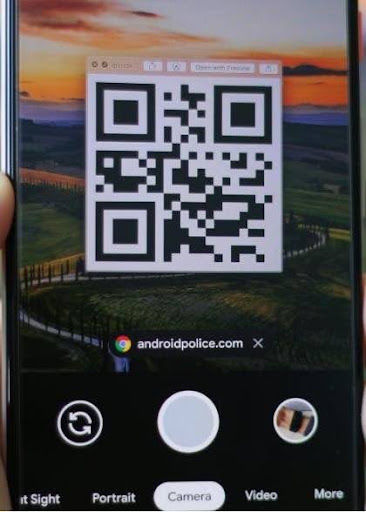
If your camera does not respond, open the Google app instead, tap the small camera icon in the search bar to open Google Lens, then point at the code and tap the shutter circle.

What to Do If Nothing Happens
Try these fixes in this order.
Clean your camera lens with a soft cloth. A smudge is the most common reason a scan fails.
Add more light, or move out of a shadow.
Hold the phone about six to eight inches away and keep it steady.
Make sure you are on the back camera, not the selfie camera.
Make sure the entire square is on your screen, including the white border around it.
Safety Warning: How to Spot a Fake QR Code
This is the part we want you to remember. Criminals have learned that people scan these codes without thinking, so they print their own QR codes on sticker paper and paste them right on top of the real ones. The Federal Bureau of Investigation has warned the public about exactly this. Scammers also send QR codes by text and email, often claiming a package could not be delivered or that there is a problem with your account.
When you scan a fake code, you land on a website that looks real and asks for your password, your credit card number, or your Social Security number.
Follow these rules every time you scan.
Look at the code before you scan it. If it looks like a sticker placed over another code, or if the edges are peeling up, do not scan it. Tell an employee.
Read the web address before you tap. Your phone shows it to you for a reason. Look for the company name spelled correctly. A code at Safeway should not send you to a site named "safeway-pay-now-secure.com."
Never scan a QR code that arrives in a text or email you did not expect. Even if it appears to come from your bank, your delivery company, or a government office. Call the company using the number on your statement or on the back of your card instead.
Never enter a password or payment information on a page you reached by scanning a code from a text message. Type the company's website into your browser yourself.
Do not download an app from a QR code. Use the App Store or the Google Play Store.
Do not install a separate QR scanner app. Your built-in camera is safer and it already works.
If you are unsure about a code, the safest choice is simple. Do not scan it. Nothing important will be lost.
Three Questions to Ask Before You Scan
Ask yourself these three questions and you will avoid nearly every QR code scam.
Did I go looking for this code, or did it come to me?
Does the code look tampered with or stuck on?
Does the web address on my screen match the company I expect?
If any answer worries you, stop.
Quick Recap
Your phone camera scans QR codes already. No app needed.
Point, wait two seconds, read the address, then tap.
Codes on menus, meters, and flyers are usually fine, but check for stickers.
Codes in unexpected texts and emails are the dangerous ones.
When in doubt, type the website in yourself.
AnewVista Community Services is a dedicated non-profit organization focused on making technology simple, accessible, and frustration-free. For more practical tips, step-by-step guides, or to sign up for one of our free, interactive tech classes, visit us today at ANVCS.org.
Take a Class: Register for our always-free sessions (live on Zoom or in-person) at www.anvcs.org
Want to learn more? At AnewVista, we host weekly tech classes to help you master these skills in a frustration-free environment. Visit us at www.anvcs.org to see our class schedule!
#ANVCS #DigitalPrivacy #CaliforniaDROP #DeleteAct #DataProtection #SeniorSafety #ANVCS #PrivacyMatters #TechEducation #StopTheScam
ANVCS.org Increased Digital Literacy | Improved Health Outcomes | Enhanced Social Connection
Stay Connected and Informed with ANVCS.org
Empowering seniors to live independent, tech-confident lives.
Your Guide to Digital Confidence
Empowering Seniors in the Digital Age AnewVista Community Services is a 501(c)(3) non-profit organization focused on helping you navigate technology with confidence.
Take a Class: Register for our always-free sessions (live on Zoom or in-person) at www.anvcs.org.
Watch & Follow: Facebook (https://www.facebook.com/AnewVista/)
Instagram (@anewvistacs), and YouTube for daily tips and updates.
Listen: Find our podcast, Tech Talk - Unfiltered, by searching "ANVCS" on Spotify or Apple Podcasts.
We're dedicated to empowering seniors to thrive in the digital world. Visit our website or call us today!
For more technology tips for seniors, visit us at www.anvcs.org or send an email to info@anvcs.org where we make learning easy.
Comments