
How to Take and Share a Screenshot: A picture of what's on your screen
A screenshot is a picture of what's on your screen. It's handy for showing a family member an error message, saving a recipe, or keeping a copy of a confirmation page.
On a Windows Computer: Take It, Then Paste the Screenshot
Press three keys together: the Windows key, Shift, and the letter S.
Your screen will dim and a small toolbar will appear at the top.

Click and drag your mouse over the part of the screen you want to capture. Let go when you're done.
The picture is now saved on your computer's "clipboard," which is a temporary holding spot. You won't see it yet, and that's normal.
Open where you want the picture to go, such as an email, a Word document, or a chat.
Press Ctrl and V together to paste. Your screenshot appears.

Helpful hint: You can also right-click and choose Paste if you prefer the mouse.

On a Mac: Take It, Then Drag and Drop the Screenshot
Press three keys together: Shift, Command, and the number 4.
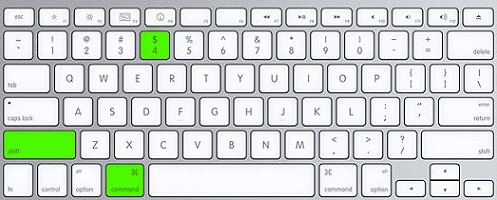
our pointer turns into a small crosshair (a plus sign).
Click and drag over the area you want to capture. Let go when you're done.
A small preview of your screenshot pops up in the bottom right corner of your screen for a few seconds.
Click and hold that preview, then drag it into our app and let go.

Helpful hint: If the preview disappears before you grab it, don't worry. The screenshot is saved on your Desktop. Drag it from there just the same.
Practice Makes Perfect
Try it a few times on something simple, like the weather page. After two or three tries, it will feel natural.
AnewVista Community Services is a dedicated non-profit organization focused on making technology simple, accessible, and frustration-free. For more practical tips, step-by-step guides, or to sign up for one of our free, interactive tech classes, visit us today at ANVCS.org.
Take a Class: Register for our always-free sessions (live on Zoom or in-person) at www.anvcs.org
Increased Digital Literacy | Improved Health Outcomes | Enhanced Social Connection
Stay Connected and Informed with ANVCS.org
Empowering seniors to live independent, tech-confident lives.
Your Guide to Digital Confidence
Empowering Seniors in the Digital Age AnewVista Community Services is a 501(c)(3) non-profit organization focused on helping you navigate technology with confidence.
Take a Class: Register for our always-free sessions (live on Zoom or in-person) at www.anvcs.org.
Watch & Follow: Facebook (https://www.facebook.com/AnewVista/)
Instagram (@anewvistacs), and YouTube for daily tips and updates.
Listen: Find our podcast, Tech Talk - Unfiltered, by searching "ANVCS" on Spotify or Apple Podcasts.
We're dedicated to empowering seniors to thrive in the digital world. Visit our website or call us today!
For more technology tips for seniors, visit us at www.anvcs.org or send an email to info@anvcs.org where we make learning easy.
Comments